Apply themes to Drop Down Menu V3 - tutorial
home » flash components » flash menus » drop down menu v3 » apply themes to drop down menu v3 - tutorial »
1. Open your Adobe Flash CS3 software and create a new file (File/New/Flash Document). Drag a drop down menu on the stage from the Component palette.
2. If you can’t find the drop down menu component, please see the How to install a MXP file tutorial. If you have trouble configuring your drop down menu please see the How to find Help for Jumpeye components.
3. Before you continue with this tutorial please read the Create a Simple Drop Down menu tutorial.
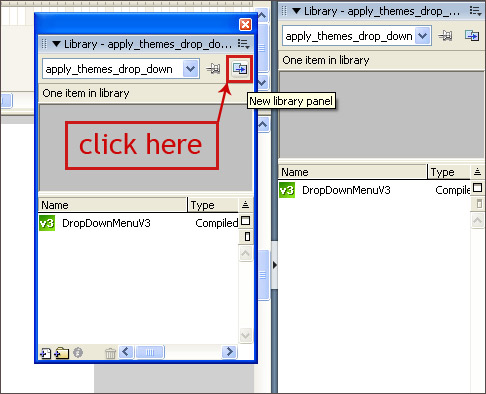
4. Open the SkinAssetsDropDownMenuV3.fla file from the Demo folder that came with the Drop Down menu. Move back to your fla file file that you created and click the little button on the upper right corner of your library for adding a new library panel.
5. Click the dropdown button from one of the library panels and chose the SkinAssetsDropDownMenuV3 file. From this library drag the DDMThemeBlueA1MainClip movie clip to your drop down menu file.
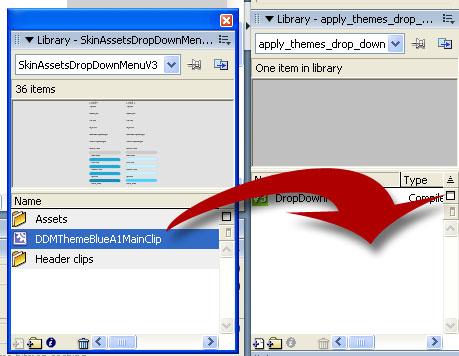
6. Now you don’t need anymore the SkinAssetsDropDownMenuV3 library panel. You need to define your new styles in the xml file like this (or you can simply use the edited xml file you’ve received together with the assets fla file):
In order to read about every style tag, please read the style help page.
  <styles>

       <level1_style>

            <itemSpacing>17</itemSpacing>

            <barIconSpacing>2</barIconSpacing>

            <popIconSpacing>16</popIconSpacing>

            <fixedSize>false</fixedSize>

            <folderIconId></folderIconId>

            <itemHeight>21</itemHeight>

            <textFormat>

                 <font>Tahoma</font>

                 <size>11</size>

                 <bold>false</bold>

                 <color>0xFFFFFF</color>

                 <underline>false</underline>

                 <align>right</align>

                 <rightMargin>4</rightMargin>

            </textFormat>


            <parts>

                 <left>DDM_BlueA1_style1_left</left>

                 <right>DDM_BlueA1_style1_right</right>

                 <hseparator>DDM_BlueA1_style1_hseparator</hseparator>

                 <vseparator>DDM_BlueA1_style1_vseparator</vseparator>

                 <top>DDM_BlueA1_style1_top</top>

                 <bottom>DDM_BlueA1_style1_bottom</bottom>

                 <folderIconId>DDM_BlueA1_style1_folderIcon</folderIconId>

            </parts>


            <states>

                 <up>

                      <mcLinkageId>DDM_BlueA1_style1_up</mcLinkageId>

                 </up>

                 <over>

                      <mcLinkageId>DDM_BlueA1_style1_over</mcLinkageId>

                 </over>

                 <down>

                      <mcLinkageId>DDM_BlueA1_style1_down</mcLinkageId>

                 </down>

                 <selected>

                      <textFormat>

                           <bold>false</bold>

                           <color>0x005979</color>

                      </textFormat>

                      <mcLinkageId>DDM_BlueA1_style1_selected</mcLinkageId>

                 </selected>

                 <disabled>

                      <textFormat>

                           <color>0x666666</color>

                      </textFormat>

                      <mcLinkageId>DDM_BlueA1_style1_disabled</mcLinkageId>

                 </disabled>

            </states>

       </level1_style>


       <level2_style>

            <folderCollapsedIconId>ATM_BlueA1_style1_collapsed_icon

            </folderCollapsedIconId>

            <folderExpandedIconId>ATM_BlueA1_style1_expanded_icon</folderExpandedIconId>

            <spacing>3</spacing>

            <itemNextSpacing>1</itemNextSpacing>

            <textFormat>

                 <font>Tahoma</font>

                 <size>11</size>

                 <color>0x016080</color>

                 <underline>false</underline>

            </textFormat>


            <states>

                 <up>

                      <mcLinkageId>ATM_BlueA1_style2_false_up</mcLinkageId>

                 </up>

                 <over>

                      <textFormat>

                           <underline>false</underline>

                      </textFormat>

                      <mcLinkageId>ATM_BlueA1_style2_false_over</mcLinkageId>

                 </over>

                 <down>

                      <textFormat>

                           <underline>false</underline>

                      </textFormat>

                      <mcLinkageId>ATM_BlueA1_style2_false_over</mcLinkageId>

                 </down>

                 <selected>

                      <mcLinkageId>ATM_BlueA1_style2_false_selected</mcLinkageId>

                 </selected>

                 <expanded_up>

                      <mcLinkageId>ATM_BlueA1_style2_true_up</mcLinkageId>

                 </expanded_up>

                 <expanded_over>

                      <textFormat>

                           <underline>false</underline>

                      </textFormat>

                      <mcLinkageId>ATM_BlueA1_style2_true_over</mcLinkageId>

                 </expanded_over>

                 <expanded_down>

                      <mcLinkageId>ATM_BlueA1_style2_true_down</mcLinkageId>

                 </expanded_down>

                 <expanded_selected>

                      <mcLinkageId>ATM_BlueA1_style2_true_selected</mcLinkageId>

                 </expanded_selected>

                 <disabled>

                      <textFormat>

                           <color>0xFDFDFD</color>

                      </textFormat>

                      <mcLinkageId>ATM_BlueA1_style2_false_disabled</mcLinkageId>

                 </disabled>

            </states>

       </level2_style>

      ………….      ………….      ………….      ………….      ………….      ………….      ………….

  <styles>
7. After you defined you styles, you have to call them up in the data node like this :
  <data>

       <main  childStyle="level1_style">

            <item title="Home" childStyle="level2_style"  >

                 <item title="Jumpeye  website" />

                 <item title="Subtitle  2" />

                 <item title="Subtitle  3" />

            </item>


            <item title="About us" childStyle="level2_style">

                 <item title="Subtitle  1" />

                 <item  title="Subtitle 2" />

                 <item title="Subtitle  3" />

            </item>


            <item title="Contact us" childStyle="level2_style">

                 <item title="Subtitle  1" />

                 <item title="Subtitle  2" />

                 <item title="Subtitle  3" />

            </item>

       </main>

  </data>
8. Save your xml file and hit Ctrl + Enter to test your movie. This is how your swf should look like :