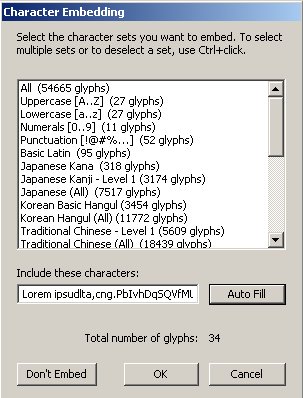
Embed fonts
1. Fonts can be identified by their name, size and typeface (e.g. Arial, 20, bold). This information is set for each font symbol in your project's Library, so when you are using those fonts, you can only use them with the same typeface they were added with. This means that if you have two Arial font symbols in the Library, one with regular typeface and the other with bold, you won't be able to use in your flash clip an Arial font with bold-italic typeface as an embedded font, because it won't be found among the symbols in the Library. For this type of font, you will need to create a new font symbol, besides the other two, that specifically represents the bold-italic Arial font. The same goes for bitmap text style. However, font size is not an issue, so when you are adding to the Library a font with a specified size, that font can be used with different sizes.
2. To add a new font symbol to the Library, right-click (Windows) or Control-click (Macintosh) on the Library panel and select "New Font..." from the pop-up menu. In the Font Symbol Properties window set the name you like for the font, select the font, the typeface and size you need and press the Ok button. Remember that if you set the bold typeface to your font, only the bold typeface will be embedded, so you'll have to create new symbols for the other typefaces.
Arial with regular typeface
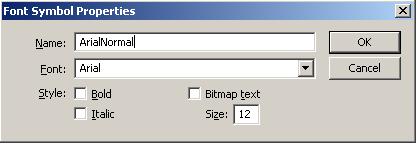
Arial with bold typeface
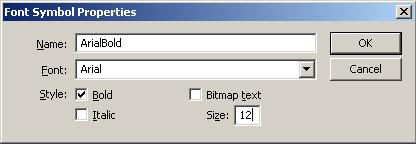
Arial with italic typeface
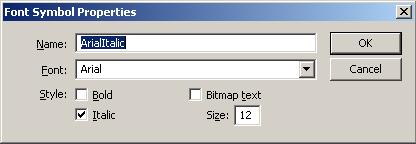
Arial with bold-italic typeface
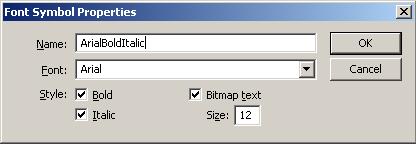
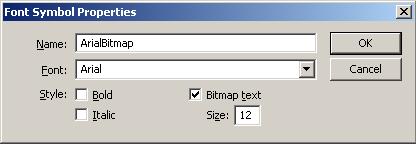
3. Arial with font information embedded as bitmap data. Anti-aliasing cannot be used by bitmap fonts and you'll have to select Bitmap as the anti-aliasing option for the font, in the Properties Panel.
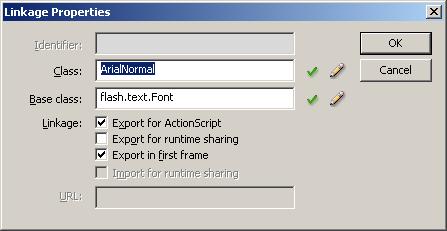
4. If your embedded font needs to have a linkage id (for example to be able to reference it from ActionScript), right-click (Windows) or Control-click (Macintosh) on the new font simbol in the Library and select "Linkage..." from the menu. In the Linkage Properties window select Export for ActionScript, set a name for your font in the Class text field and than press Ok.
How to embed fonts from the text field's Properties panel
In case you do not need to have the fonts included into your project's Library, you can embed fonts simply by using the Embed button found on the target text field's Properties panel. The easiest way would be to use the Auto Fill option, in the Character Embedding dialog box. In this case, Flash will automatically embed only the characters found in the text field.